
Cart, checkout & orders
In the cart
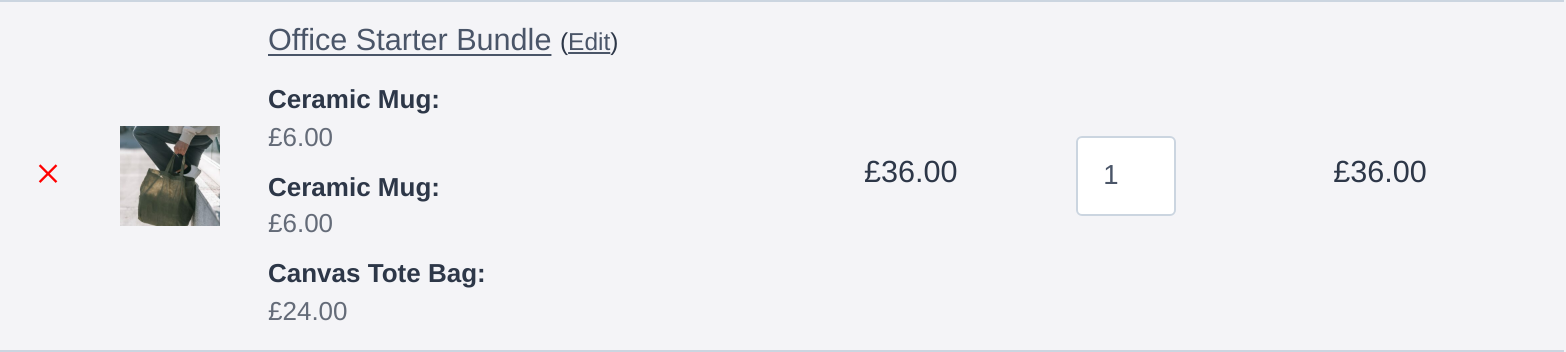
Section titled “In the cart”The whole bundle (every slot, unit and variation) is one cart line, with the chosen contents listed underneath it. Identical units are grouped, so ten of the same configuration read as one line with a quantity rather than ten repeated lines. The price is the live sum, or your fixed price, minus any active discount.
Edit from the cart
Section titled “Edit from the cart”An Edit link takes the customer back to the product page with everything pre-filled. Submitting the updated form replaces the existing cart line in place, rather than adding a second one. The Edit link is there on the classic cart, the mini-cart and the block cart.
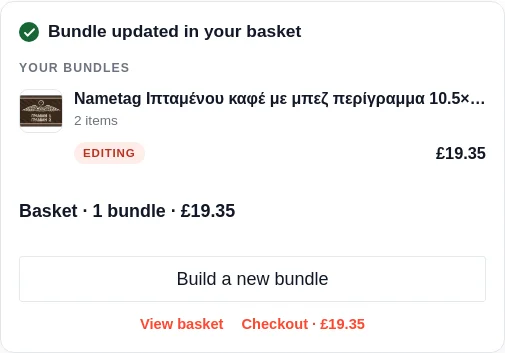
Editing also works without leaving the product page: the order panel lists every bundle in the basket, and each one carries its own Edit, quantity and remove controls. The one being edited is badged “Editing” while the builder above holds its configuration, and updating confirms in place.
A bundle with nothing to configure (fixed items, no options) shows no Edit link anywhere, because there is nothing to change; repeat purchases of it merge into a single line with a quantity instead of stacking duplicates.
Order again
Section titled “Order again”When a customer reorders a past bundle from My Account, the whole configuration is rebuilt, every slot, unit and option, so they get exactly what they bought before without setting it up again.
Tiers and the discount nudge
Section titled “Tiers and the discount nudge”When several copies of the same bundle are in the cart, the highest matching quantity tier applies to all of them. If a better tier is within reach, a callout shows “Add N more to unlock X% off” with a progress bar and a one-click “+1 same configuration” button.
At checkout
Section titled “At checkout”Stock is re-checked on the cart and again at checkout, in case it changed while the customer was deciding, covering both the products inside the bundle and the bundle’s own stock limit. If something has sold out or run short (someone else bought the last one), the shopper is told with a clear “not enough stock, reduce the quantity” message, and checkout is blocked, so an order can never be placed that you cannot fulfil.
On the order
Section titled “On the order”Each order line stores the bundle and a human-readable breakdown of every slot, visible in the WooCommerce order screen, plus the full selection data behind the scenes.
The pick list
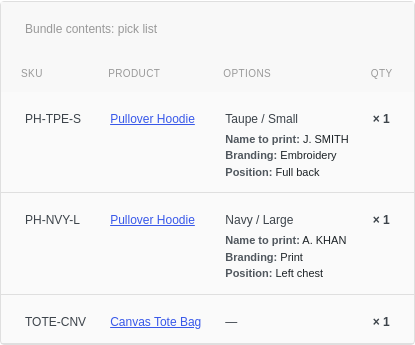
Section titled “The pick list”Every bundle order shows a “Bundle contents, pick list” table on the admin order screen, and the same detail goes into the order confirmation email: component SKU, product, chosen options, and exact quantities (multiplied by the cart quantity). It is the one view your warehouse needs to pack the order, including any personalisation and uploaded artwork.
Blocks and classic
Section titled “Blocks and classic”The cart and checkout work whether your store uses the classic shortcodes or the Cart and Checkout blocks: the bundle price, item detail and the discount nudge all render in the block cart too.