
Choice slots
Choice slots are part of the Builder. The free plugin handles bundles where you choose the products; choice slots hand that choice to the customer.
What a choice slot is
Section titled “What a choice slot is”A normal slot is a product you picked. A choice slot is a labelled slot (“Motherboard”, “Pick a treat”) with a pool of candidate products; the customer chooses one, then configures its quantity and variations exactly like any other item. Several choice slots together make a full configurator.
Pick one, or pick several
Section titled “Pick one, or pick several”Every choice slot has a mode:
- Pick one is the classic choice: the customer chooses a single product from the pool, then how many of it. A “Motherboard” slot is pick-one.
- Build a box turns the same slot into a “pick any N”: the customer fills the slot with several different products from the pool, up to the count you set. Set Qty and Max to 6 and the slot reads “pick any 6”; a higher Max lets them choose how many. You can also cap how many different products they mix in (“up to 3 kinds”) under More options.
In the wizard this is the “one or several” question when you add a customer choice. A pick-several slot sits happily next to fixed items and pick-one slots in the same bundle, so “a hamper base, a cheese of your choice, and any 4 crackers” is one bundle with three kinds of row.
Add a choice slot
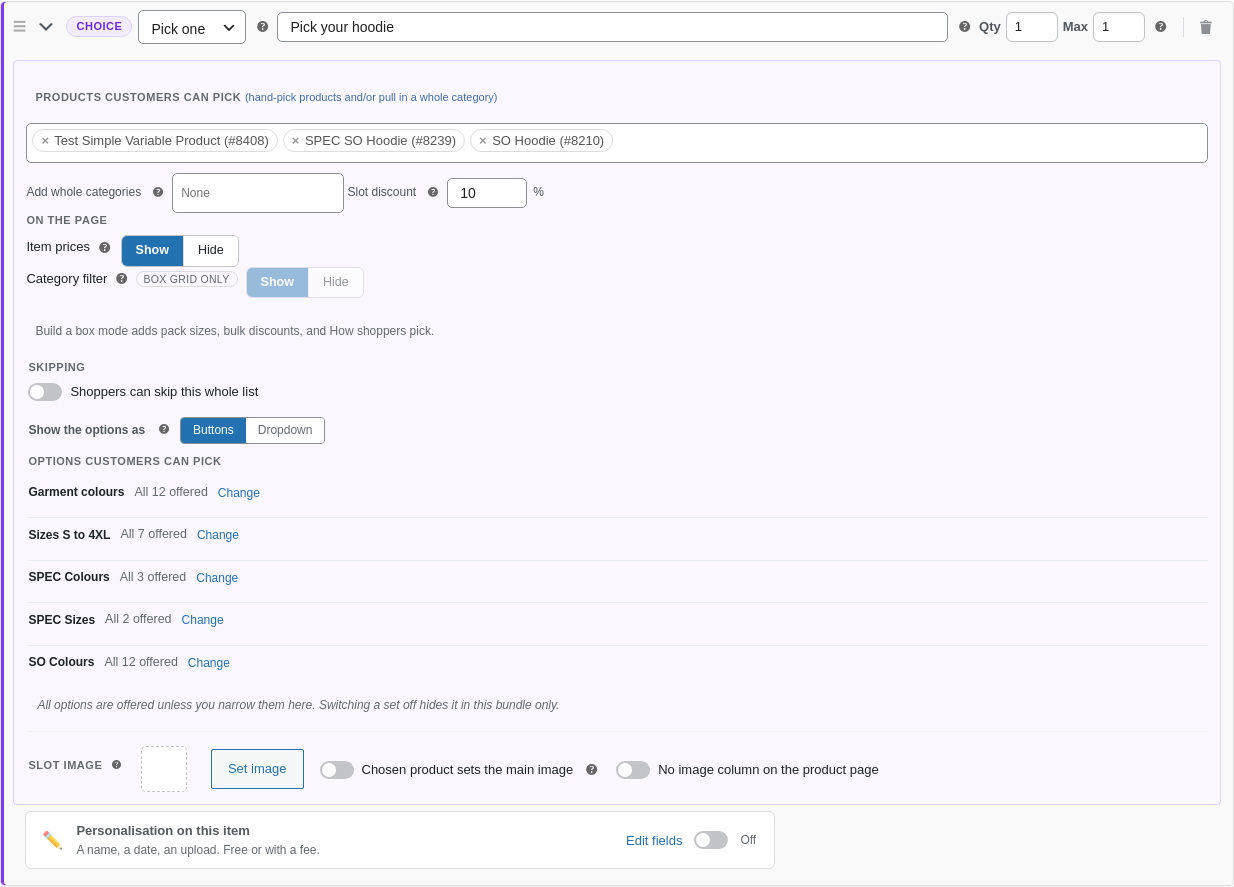
Section titled “Add a choice slot”- On the Bundle Items tab click + Add Choice Slot (the violet row).
- Give it a slot name customers will see, like "Pick a treat".
- Fill the pool: hand-pick products in the search box (names, IDs and SKUs all match), or pull in one or more categories, or both (they combine).
- Optionally set a slot discount, a percentage off whichever product they choose.
- Set Min and Max like any slot. Leave Max empty for "choose one or more" with no ceiling.
- Optionally set a slot image (shown before a product is picked), or tick "Chosen product sets the main image" so the customer's pick takes over the page's main image.
- Save the product first. Rules can only connect slots once they have been saved.
Narrow what the slot offers
Section titled “Narrow what the slot offers”Under Options customers can pick, every attribute and option set the pool carries gets one line, “All 12 offered”, with a Change that opens a searchable checklist. Offer a subset (“this bundle sells three of the twelve colours”), or switch a set off for this bundle only. The server enforces the narrowed list, so a hidden option can never be submitted.
Two page controls sit with the slot too: Item prices shows or hides the per-product prices on the slot’s cards (hide them where the bundle price is the story), and Shoppers can skip this whole list makes the slot optional.
A pool that maintains itself
Section titled “A pool that maintains itself”A pool can be a hand-picked list, one or more product categories, or both together. A category pool is live: it always offers whatever is currently published in that category, so when you add a new product to the category later, it appears in the slot on its own, with no edit to the bundle. Point a “Pick a treat” slot at your Treats category once, and every treat you add from then on is offered automatically. Ideal for a rotating range or a large, changing catalogue.
Hand-picked products and a category combine: the hand-picked ones show first, then the category fills in the rest. The server re-derives the pool on every submit, so a self-updating category never opens a hole in your validation.
What customers see
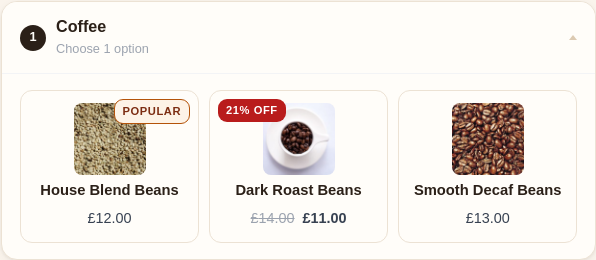
Section titled “What customers see”The slot shows candidate cards with each product’s image, price and stock. Pools larger than eight get a search box, and long pools are paged. Choosing a product shows a green chosen bar with a Change button and drops the product’s normal configuration UI (quantity, variations, swatches) straight in.
Deal badges, for free
Section titled “Deal badges, for free”Candidates that are on sale show WooCommerce’s strikethrough price and an exact “N% off” badge (or a plain “Sale” badge for variable products where the saving differs per variation). Featured products get a “Popular” ribbon. These read straight from the flags products already have, so there is nothing to configure.
Hero slots
Section titled “Hero slots”Tick “Chosen product sets the main image” and the customer’s pick takes over the page’s main product image, configurator-style. Great for a hero component like a PC case or a gift box. The latest hero choice wins, and clearing it puts the original image back.
Pricing and validation
Section titled “Pricing and validation”- A slot discount applies before bundle-level pricing and tiers. The live total and the server agree to the penny.
- The shop’s “From £” price uses the cheapest possible build.
- Edit from cart restores every chosen product, its configuration and any skipped optional slots.
- The server re-derives the pool on submit, so a build naming a product outside the pool is rejected whatever the browser sends.
Going further
Section titled “Going further”- Compatibility & quantity rules make one slot’s choice control another (“only boards that fit the chosen processor”).
- Shareable build links let a customer copy a finished build to a link anyone can open and buy.
The seeded Custom PC Builder, Ski Package and gift-box bundles are choice-slot examples to copy from.