
Promotions
The Bundle Promotions tab
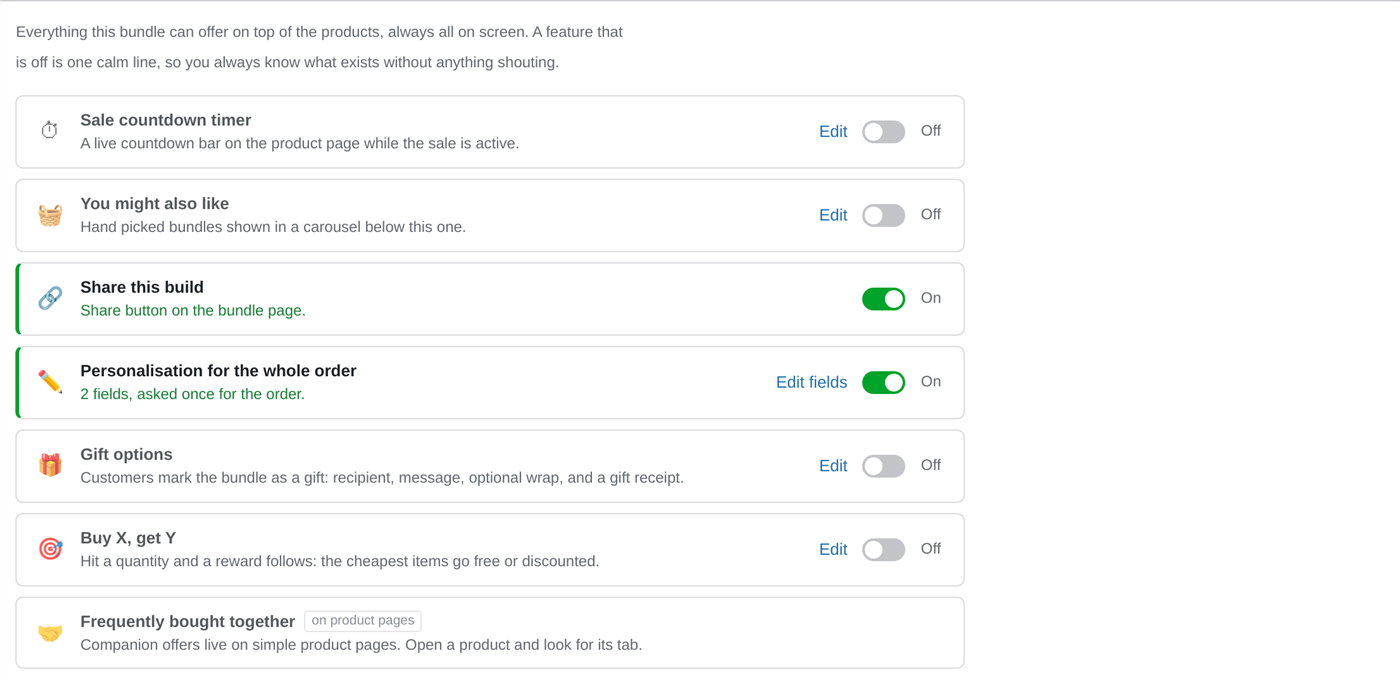
Section titled “The Bundle Promotions tab”Each row is one feature: a switch, a one-line summary of its current state, and an Edit button for its settings. A feature that is off stays visible as one calm line, so you always know what is available.
Sale countdown timer
Section titled “Sale countdown timer”The sale’s one home. Edit holds the sale price and its start and end dates; while the window runs, the bundle charges the sale price and the product page shows a live “Sale ending in” countdown with a depleting bar. When the window closes, the price and the page go back to normal on their own. Quantity tiers stack on the sale price, so “on sale AND cheaper by the case” works.
You might also like
Section titled “You might also like”Hand-pick other bundles to show in a carousel below this one. A simple way to move shoppers between related pages, from a starter pack to a premium one, or between seasonal kits.
The rest of the rows
Section titled “The rest of the rows”- Share this build: a button that gives the shopper a link reopening their exact picks. Per-bundle opt-in; see shareable build links. Pro
- Personalisation for the whole order: fields asked once for the entire bundle, a shared logo or a delivery note; see personalisation. Pro
- Gift options: recipient, message, optional wrap and a gift receipt; see gift mode. Pro
- Buy X, get Y: the cheapest items go free or discounted at a quantity; see Buy X Get Y. Pro
- Frequently bought together: companion offers that live on simple product pages; see FBT. Pro
Quantity discount tiers stay on the Bundle Pricing tab, because they are pricing rather than a promotion: “buy 2 or more bundles, save 15%”.
Pair the sale countdown with a quantity tier so the offer rewards buying more, and the carousel to point shoppers at the next bundle once they have committed to one.