
Create a bundle with the wizard
New in 4.6.0. The wizard is the fastest way to make your first bundle. It is not a separate kind of product: everything it creates is a normal bundle, identical to one built by hand, so nothing is locked in to the wizard.
New in 4.8.0. The wizard now edits an existing bundle too, not only creates one. Open a bundle, change its products, layout, pricing, name and more, and save. Anything the wizard does not show is kept exactly as it was, so editing never strips a feature you set in the editor.
Where to find it
Section titled “Where to find it”You can open the wizard three ways:
- BundleBoss → Create a bundle in the admin menu. A “New” badge marks it while it is fresh.
- When you add a product and set the type to Bundle, a one-time popup offers the wizard. Dismiss it and it stays dismissed.
- A quiet “Prefer a guided setup?” link in the Bundle panel while you are creating a new product.
The three steps
Section titled “The three steps”1. What are you creating?
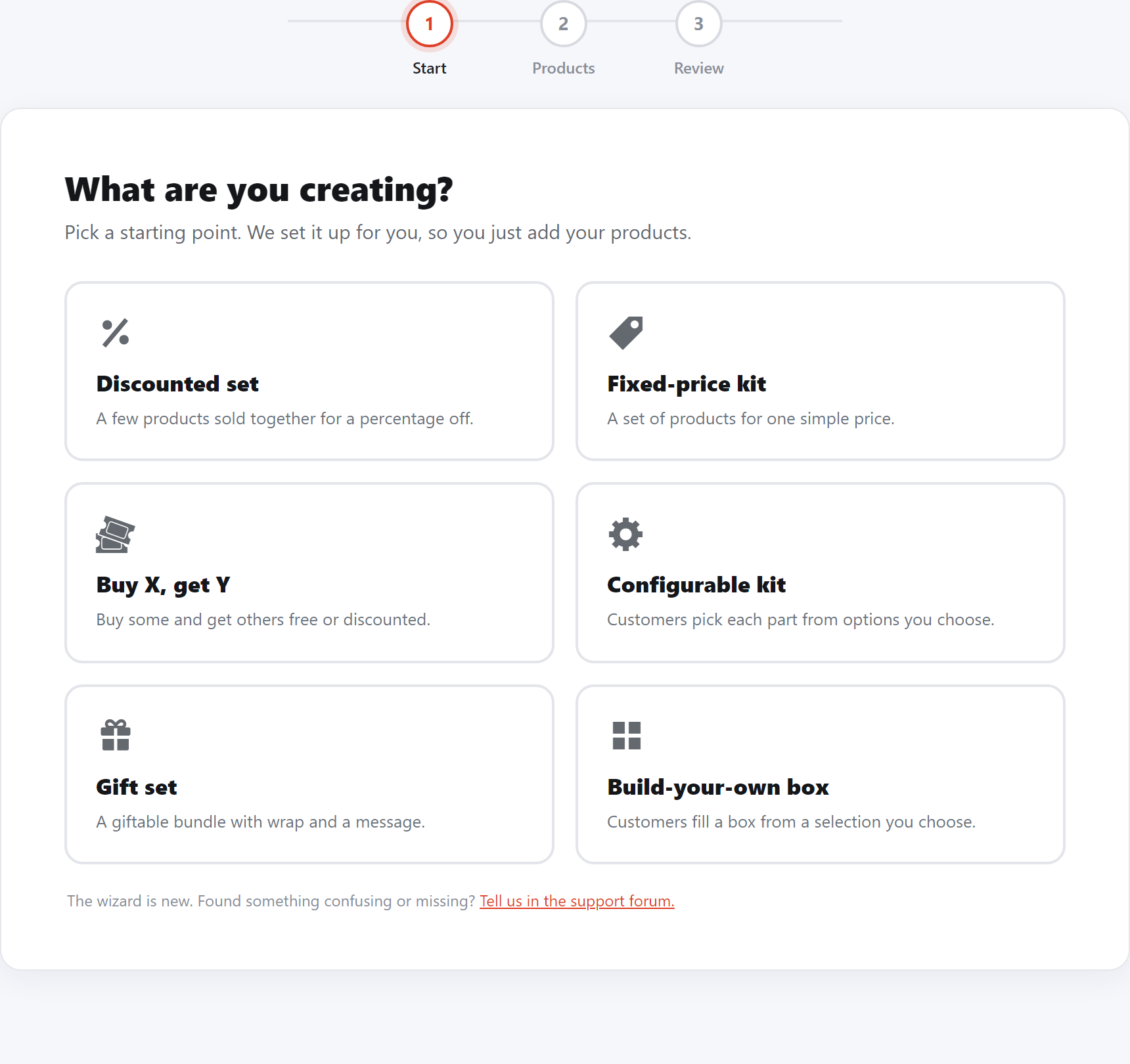
Section titled “1. What are you creating?”Pick a recipe. The recipe pre-configures the layout, pricing and structure, so from there you mostly just add products.
- Discounted set (free): a few products sold together for a percentage off.
- Fixed-price kit (free): a set of products for one simple price.
- Buy X get Y, Configurable kit (customers pick each part), Gift set and Build-your-own box are added by the Builder Pro.
2. Products
Section titled “2. Products”Add the products the bundle contains.
- The products you add are in every bundle by default. The step speaks in plain terms, so a first-timer knows what each part does.
- A customer choice Pro lets the shopper pick from options you set, one or several (for example “pick any 3 of these”).
- Products with variations are labelled “has options” in the search, so you know when a customer will be choosing a size or colour.
- The Build-your-own box recipe reshapes this step into which products they choose from and how many they pick, with One size (a single count, “pick any 10”) or Different sizes, a set of packs each at one flat price (a 1.7kg bucket that holds 10, a 3kg that holds 20, a 4kg that holds 30).
- A box pool with option products also gets a Default size (offer everything at 100g, or the smallest or largest of each), a size pick on each product chip for the exceptions, and an Item prices Show or Hide switch. The same controls as the editor’s, sized for the wizard.
3. Review and create
Section titled “3. Review and create”- The name is suggested from your first product. Edit it, or leave it.
- Add an optional short description, a main image and a gallery.
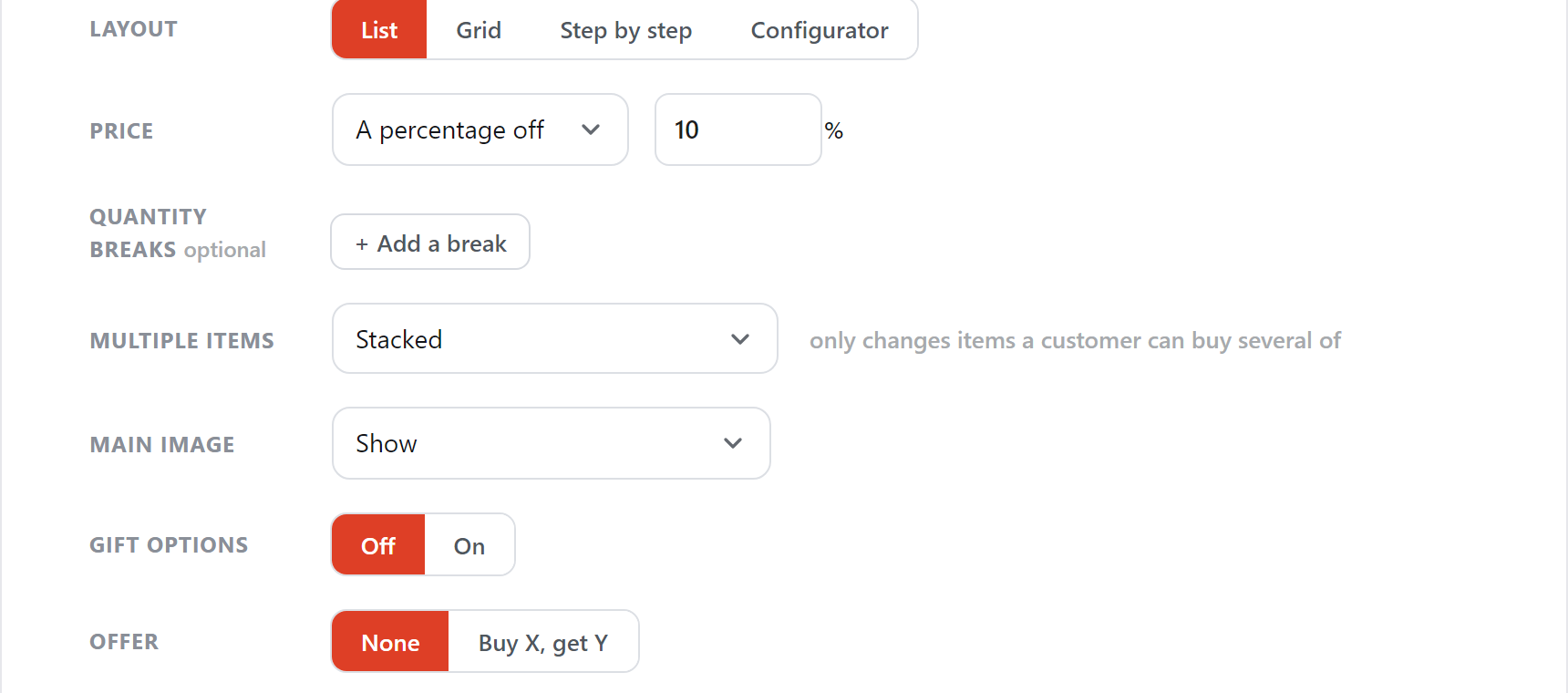
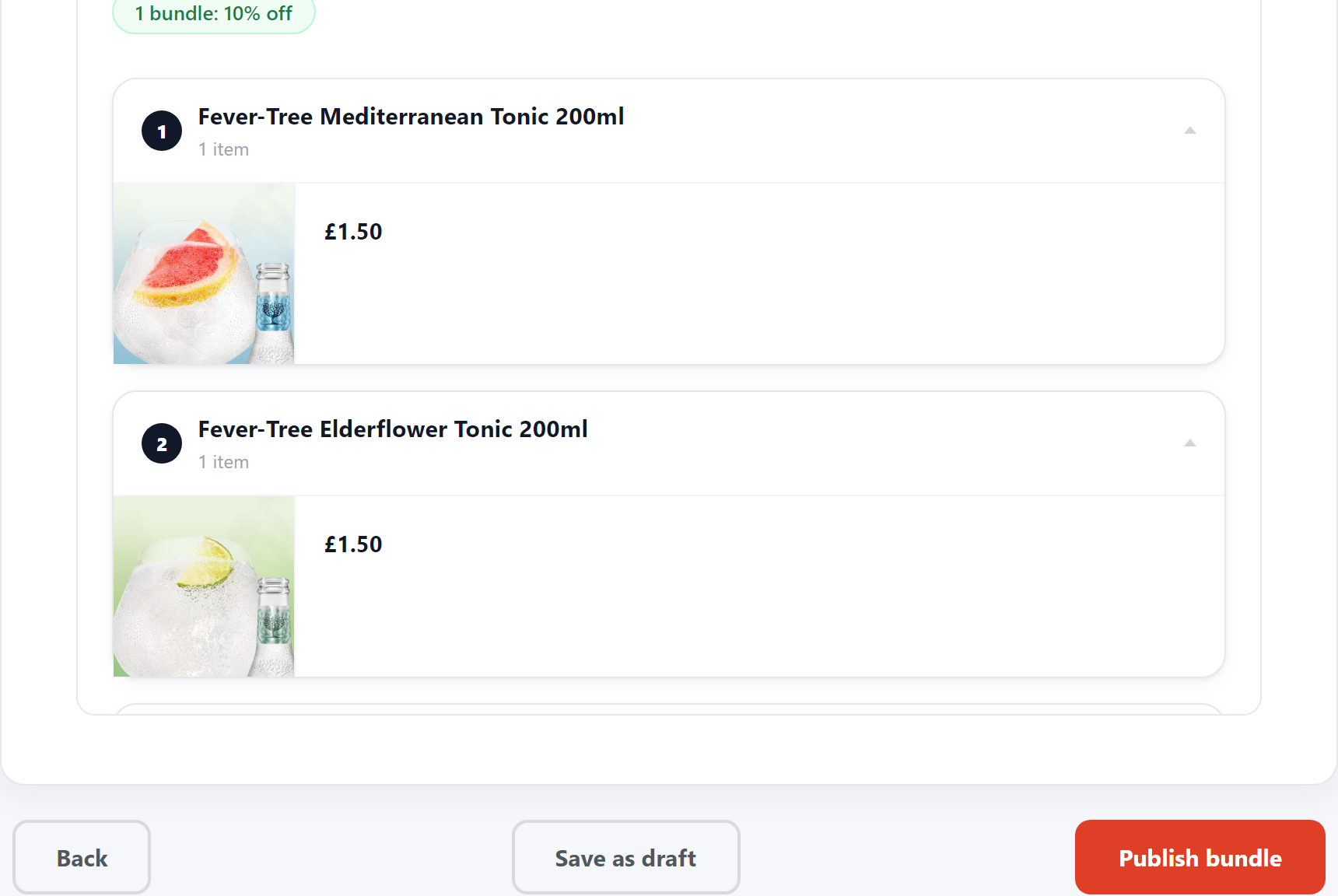
- Adjust the layout and price inline, with a live preview beside them so you see the result before you commit.
- Choose Publish to put it live, or Save as draft to keep working later.
Not sure yet? At any point after adding a product, Finish in the editor instead saves what you have as a draft and opens the full product editor. You lose nothing.
Editing a bundle
Section titled “Editing a bundle”New in 4.8.0 The wizard edits an existing bundle, not only creates one. Open a bundle from Products and choose Edit in the wizard, and it opens pre-filled from the saved bundle: its products, layout, pricing, description and categories.
- Change what you need and Save. Anything the wizard does not show is kept exactly as it was, so editing never strips a feature you set in the editor.
- When you edit, the preview shows the whole product page with your unsaved changes, so you see exactly what the customer gets before you save.
- A customer choice set up in the editor (with options, limits or pack sizes) shows as a row you can keep or remove, with a link to change it in the full editor. New choices you add in the wizard are fully editable there and then.
Good to know
Section titled “Good to know”- The preview is faithful. It renders the real bundle. Interactive layouts (Step by step, Configurator) are set in the editor, so the wizard offers the two layouts it can preview truthfully, List and Grid.
- Nothing is special about a wizard bundle. It writes through the product editor’s own save, so pricing, cart, checkout, stock and import/export all behave exactly as for a hand-built bundle.
- The wizard creates and edits. Open a bundle in the wizard to change it, or the full editor for the deep options (per-item rules, tax, stock, the personalisation builder). It hands off to the editor at any point, and nothing is lost either way.