
Pricing & discounts
Pricing modes
Section titled “Pricing modes”Open the Bundle Pricing tab and pick one mode for the bundle.
Percentage discount
Section titled “Percentage discount”The bundle costs the sum of the chosen items, minus a percentage you set. Enter 10 for 10% off, or 0 for no discount. Customers see the original total struck through with a “You save £X (Y%)” line. Because the total follows the items, the shop shows a “From £X” price.
Set amount off
Section titled “Set amount off”The bundle costs the sum of the chosen items, minus a flat amount you set (for example £5 off). Like the percentage, the price follows what the customer picks, so they see a “You save” line and the shop shows a “From £X” price.
Fixed bundle price
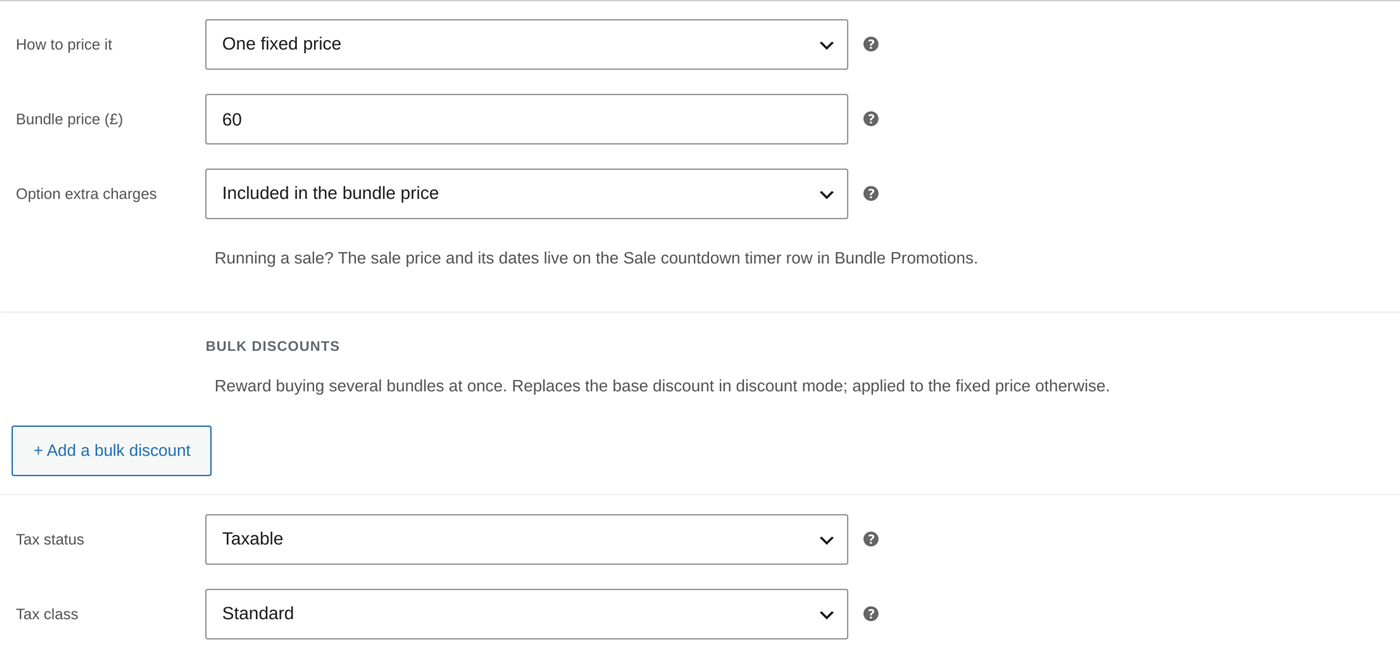
Section titled “Fixed bundle price”The bundle always costs exactly the price you set, whatever the customer picks inside it. They still see how much they save versus buying the items separately, and the shop shows the exact price rather than “From”.
Quantity discount tiers
Section titled “Quantity discount tiers”Reward customers who buy several of the same bundle. Under Bulk discounts on the Bundle Pricing tab, click + Add a bulk discount and set “from N items, X% off”:
| In the cart | Discount |
|---|---|
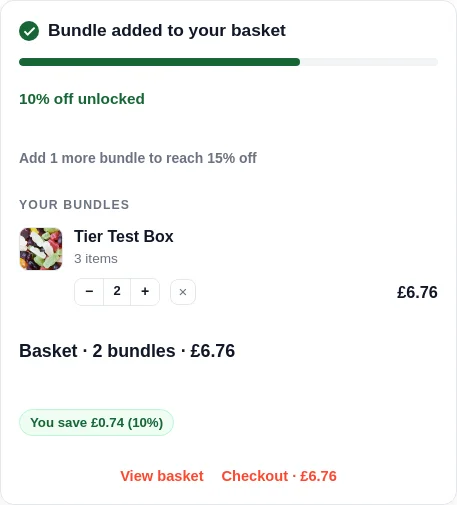
| 1 bundle | 10% (the base) |
| 2 or more | 15% |
| 5 or more | 20% |
The highest matching tier replaces the base discount automatically, and it applies to every copy in the cart. Tiers work in both pricing modes. Remove a tier with Remove.
On the product page the tiers are not just advertised, they are actionable. Before the first add, a “How many?” stepper prices the whole line live at the right tier. After adding, the order panel takes over: it lists the bundles in the basket with their own quantity controls, shows a progress bar toward the next tier (“Add 1 more to unlock 15% off”), flips to “unlocked” when a tier is reached, and restates the saving. Identical copies of a fixed bundle merge into one quantity line automatically, so the tier maths always reads from one place.
Sale price
Section titled “Sale price”To put a bundle on sale, use the Sale countdown timer row on the Bundle Promotions tab: its Edit holds the sale price and the start and end dates, and the bundle charges the sale figure for exactly that window. The Bundle Pricing tab points you there when the mode is fixed. Quantity tiers stack on the sale price, so a tier’s percentage comes off the sale figure, not the normal one.
How the price displays
Section titled “How the price displays”- From £X in percentage or set-amount mode, because the final price depends on what the customer chooses.
- An exact price in fixed mode.
- The figure recalculates automatically when a component product’s price changes and the bundle (or that product) is next saved.
Bundle stock cap
Section titled “Bundle stock cap”On the Inventory tab, tick Limit total bundles available and set a quantity to cap how many of this bundle can sell. This uses WooCommerce’s own stock counter, so it decrements on purchase and restores on cancellation or refund. Set a low stock threshold to get WooCommerce’s low-stock email when it is nearly sold out.
This is separate from component stock, which BundleBoss always tracks. See Stock & fulfilment.
How discounts combine
Section titled “How discounts combine”The base discount, a matching quantity tier and any active sale countdown resolve to one clear price. The highest matching tier wins over the base; in fixed-price mode the base discount is ignored (the fixed price is the price). The live total on the product page always matches what the customer pays at checkout, to the penny.
Tax, virtual and selling options
Section titled “Tax, virtual and selling options”A bundle is a real WooCommerce product, so the everyday selling settings are all there and behave natively:
- Tax status and tax class on the Bundle Pricing tab. A bundle can be taxable at the standard rate (the default), use a reduced or zero rate, or be tax exempt.
- Virtual on the Shipping tab, for digital or service bundles that ship nothing. A bundle made entirely of virtual items is virtual anyway.
- Sold individually on the Inventory tab, to limit a bundle to one per order.
- Upsells and cross-sells on the Linked Products tab, the same as any product.
The bundle is taxed, shipped and refunded as a single line, so none of these behave differently from a normal product.