
Quantity grid (order the whole range)
The Quantity grid is part of the Builder. A product left on "One at a time" behaves exactly as before.
The problem it solves
Section titled “The problem it solves”Someone ordering forty team shirts rarely wants forty identical ones. They want a run: a few of each size, across several colours, often with printing on top. Adding each colour and size to the basket one at a time is slow, and easy to get wrong. The quantity grid lets a customer set a quantity per colour and size in one grid and add the whole run to the basket at once.
It works in two places: on a product’s own page, and on a variable item inside a bundle. Most shops want the first.
Order the whole range on a product page
Section titled “Order the whole range on a product page”This is the one for team kit, workwear, signage and any product ordered by the batch, sold on a single product with option sets for its colour and size.
Turn it on
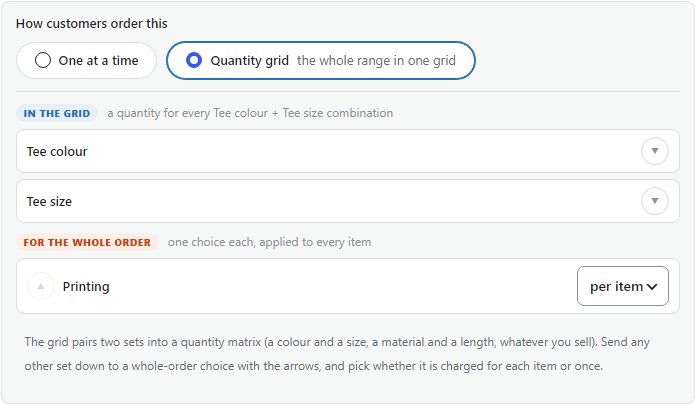
Section titled “Turn it on”On the product’s Product options tab, under How customers order this, choose Quantity grid. The product needs at least one griddable set (a colour or a size); attach those on the same tab first.
What the customer sees
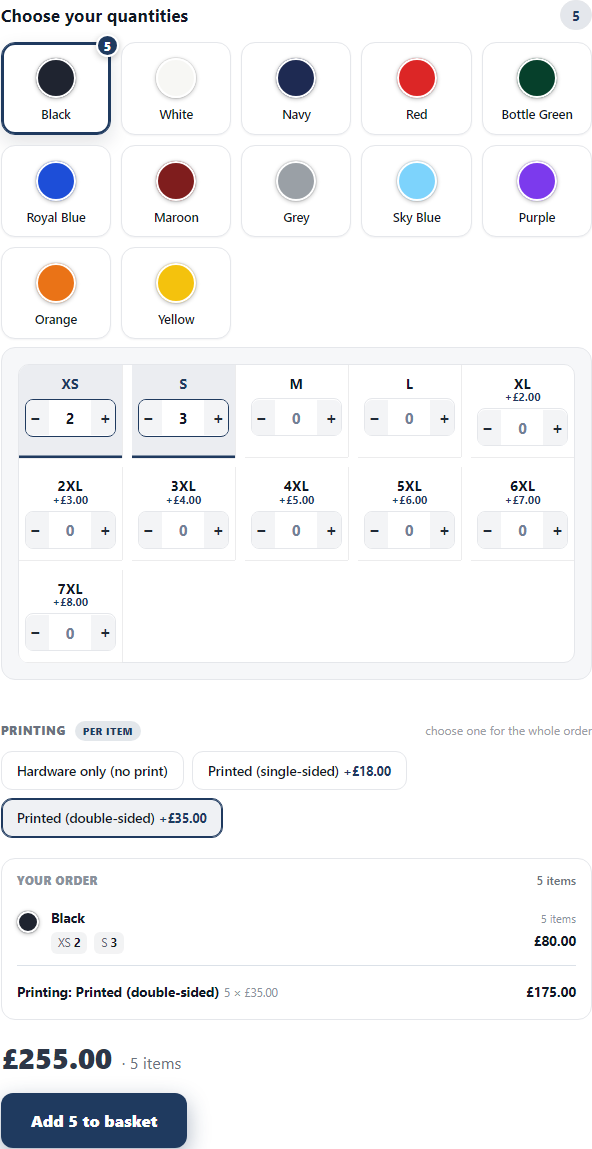
Section titled “What the customer sees”- Colour shows as tiles; tapping one reveals its sizes.
- They type a quantity into each size, or nudge the steppers. A count badge on each colour tile keeps the running total clear.
- A dearer size shows its extra right on the cell (2XL +£3.00), so a higher total is never a surprise.
- A live “your order” summary groups the picks by colour, with a subtotal for each, so the total always adds up.
- The total and the Add button stay in reach however large the order gets, and on a phone the grid reflows so there is never a sideways scroll.
Every colour and size lands as its own basket line at its own price, so the order, the emails and the warehouse pick list read exactly as staff need them.
Extras for the whole order
Section titled “Extras for the whole order”When the product carries a further set of choices, printing, a finish, packaging, the grid offers it once for the whole order rather than as a cell in the grid, so a three-set product never explodes into a wall of combinations. The customer picks one and it applies to every item.
You decide how each is charged, in the admin:
- Per item multiplies across the quantity. “Printed, double-sided, +£35” on a run of twenty is +£35 on each garment.
- One-off is charged once whatever the quantity, for a screen or setup fee.
A service can carry both, a one-off setup plus a per-garment charge, and the summary keeps them on separate lines so the total is always traceable.
Personalisation on the grid
Section titled “Personalisation on the grid”A personalisation field, a printed name, a logo to upload, a message, applies to the whole order too. It is priced for every item, per letter, or once, the same choice the fields already offer, and each charge shows on the running summary.
Which sets are the grid, and which are whole-order
Section titled “Which sets are the grid, and which are whole-order”The grid pairs two sets into the matrix (a colour and a size, a material and a length, whatever you sell). Any set beyond those two becomes a whole-order choice. It sorts itself, colour and size to the grid, the rest to the whole-order choices, and a small two-zone editor on the Product options tab lets you move a set between In the grid and For the whole order with the arrows, and pick whether each whole-order set is charged for each item or once.
On an optioned simple product there is one stock pool, so a customer can order any quantities as long as the product's own stock covers the whole run, or any run at all when the product is not tracking stock (made to order). On a variable product each variation keeps its own stock, and the grid respects it cell by cell.
Inside a bundle
Section titled “Inside a bundle”A variable item inside a bundle uses the same grid for its size run. On the Bundle Items tab, set Multiple items to Quantity grid for the item. A second setting, Colour tiles, decides how each colour looks:
| Tile style | Shows |
|---|---|
| Swatches | a colour dot only |
| Swatches and names (default) | a colour dot with its name |
| Names | the colour name only |
| Photos | the colour’s variation photo |
Swatch colours come from your swatch settings, or are filled in from the colour name, so even a custom attribute shows real dots. It pairs with a choice slot too: let the customer choose the garment, then order a size run of it.
In the cart
Section titled “In the cart”The run breaks into clear lines (Navy / M ×3, Red / L ×2), each priced natively, and the pick list lists each one with its quantity for the warehouse. A whole-order printing choice shows on the lines it applies to, and a one-off charge lands once.
When to use it
Section titled “When to use it”- Workwear and team kit: the classic “forty shirts across these sizes and colours” order.
- Signage and made-to-order: order every colour and finish in one go, with the print chosen once.
- Any range a customer buys by the batch across colours and sizes.
The grid is for quantity at speed, with one shared print or logo across the run. If every single unit needs its own different name or number, that is per-item personalisation with the Compact cards layout instead, where each unit has its own fields.